
Direct Lake enables users to point a Power BI semantic model directly at Delta tables, without needing to refresh that data every time it changes. When the data in the Delta table changes, the model shows this straight away.
It’s a really cool feature – especially if you’re using big data. But it also requires the semantic model to be in a Fabric workspace, using up valuable Fabric capacity.
Import Mode models don’t do that if they are in a regular Power BI workspace, even if they are pointing towards Delta tables.
If you’re using a smaller capacity (F2, F4, F8 or F16) that additional workload can really add up. I realised my organisation would be much better of using Import Mode in a non-premium capacity.
With no way to do this through the UI, I built a Python notebook to convert the semantic models to import mode.
Key Takeaways
- Organisations with Power BI licenses and Fabric can maximise ROI by using small Fabric capacities and semantic models in import mode.
- You can still utilise Git version control by assigning capacity to the non-Fabric workspaces temporarily.
- You can’t convert a model from Direct Lake to Import Mode using the UI, so I built a Python notebook to do it.
Contents
Why Use Import Mode?
If you have a Fabric capacity below an F64, users need Power BI licenses to view reports.
So if you use a capacity below F64 and you use Direct Lake, your organisation is effectively paying for Power BI’s modelling, reporting and compute capabilities twice: Once through the Power BI license, and once with your capacity.
When users interact with your Direct Lake reports they can use up a large chunk of your capacity. If you have multiple users querying your reports at the same time, or people undertaking in depth analysis, you’ll need a capacity large enough to support it.
That capacity could often be put to better use by providing capabilities Power BI doesn’t allow natively – machine learning, data engineering, notebooks and orchestration.
Changing the reports to import mode, and the workspaces of the reports to be non-Fabric workspaces, solves this issue. Users interacting with the reports will have no impact on your Fabric capacity, and in many cases your reports may in fact speed up.
Downsides of Import Mode
To be fair, Import Mode isn’t a perfect drop-in replacement.
Unlike Direct Lake, you’ll need to schedule refreshes when the underlying data changes, something that happens automatically with Direct Lake.
When the table structure changes, columns will still appear automatically after a refresh in Import Mode, but adding a table becomes slightly more time consuming than in Direct Lake.
Most importantly though, Import Mode isn’t suitable for very large models, unless you’re using incremental refresh well. Direct Lake is designed for this situation. But then again, if you’re interacting with super large models, Fabric capacity size probably isn’t the biggest issue for you.
Direct Lake vs Import Mode
| Feature | Direct Lake | Import Mode |
| Requires Fabric capacity | Yes | No |
| Data always up to date | Yes | No — requires scheduled refresh |
| Suitable for large models | Yes | Only with incremental refresh |
| Capacity usage on refresh | N/A – Does not refresh | Yes |
| Capacity usage when used | Yes | No |
My Experience
Background
I developed a data platform for Help Musicians, which extracts data from a variety of business applications, transforms and surfaces it in a datalake for business use.
I used PySpark notebooks for data extraction via API request, with SparkSQL notebooks generating materialised Lakehouse views for the silver layer. Several reports were built on top of a single Direct Lake semantic model.
When it came time to move off the F64 Fabric trial onto a smaller capacity, I noticed that end user report activity would regularly exceed the capacity limits of an F8, F4, or F2 capacity. Smoothing and bursting would help reduce the impact, but it would undoubtedly lead to a poor experience and slow reports for users.
The fix was obvious: convert the models to Import Mode and switch the workspaces to a Power BI non-Fabric capacity.
Converting the Direct Lake Model to Import Mode
The issue is: Microsoft don’t provide a way to do this with the UI.
There are a few workarounds available for converting models, including Tabular Editor 2/3, but I found all of them caused issues after the first refresh.
When data was refreshed the tables would load as blank initially, leading to invalid relationships, which then got deleted, leaving no relationships at all. This also affected columns which were sorted by another column.
Even though the data would then almost instantly appear, this would still cause the deletion of all the relationships, breaking the model.
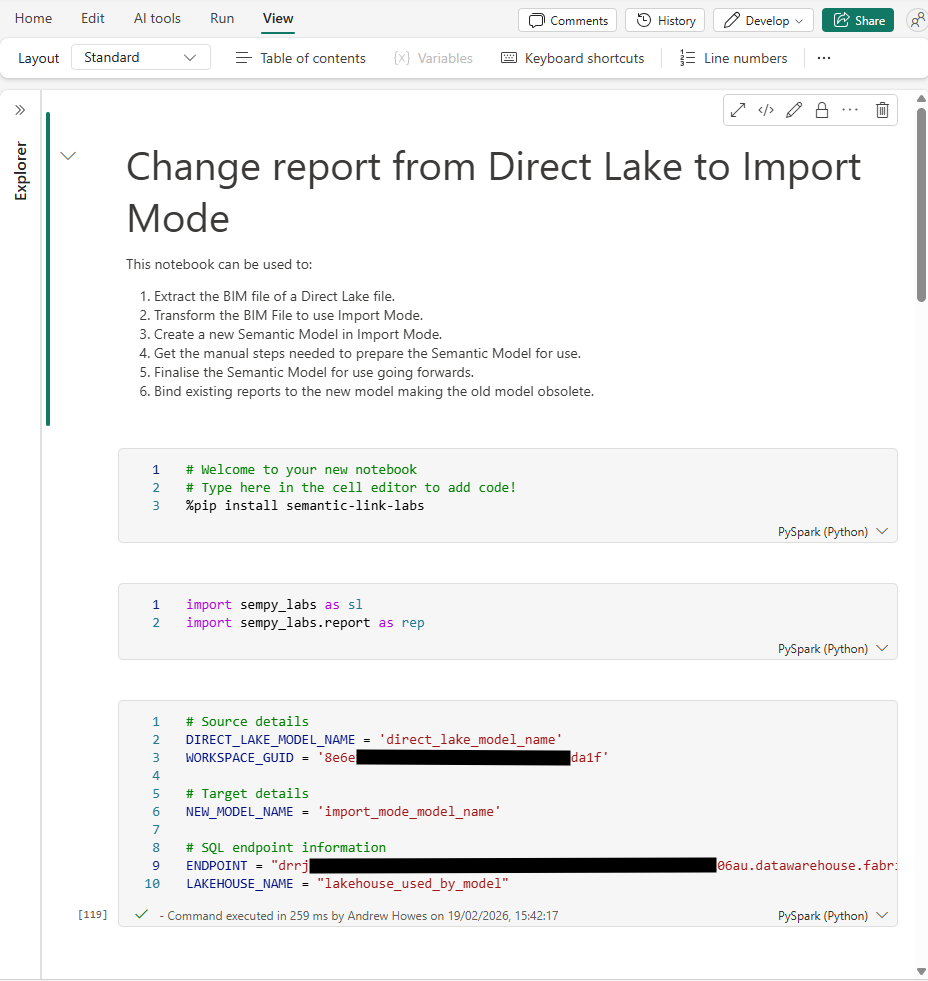
To get around this and avoid needing to manually recreate every relationship and sort order, I made a Python notebook that can run natively in Fabric.
The notebook creates an Import Mode version of your model. You then need to follow some manual steps in Power BI Desktop, before finalising the model by recreating the relationships and column orders. You can then bind any existing reports to point to your new Import Model, instead of the old Direct Lake one.
Here’s what it does:
- Extract the BIM file: Takes this from the existing Direct Lake model using sempy_labs.
- Transform the partitions: For each Direct Lake table, it replaces it with a single partition of an equivalent M query pointing at the SQL endpoint of your Lakehouse.
- Remove Direct Lake annotations and expressions: things like the shared expressions that Direct Lake uses for its entity references.
- Creates the new Import Mode model
- After the manual steps below, recreates the relationships and column sort order by pulling them from the original model’s BIM and applying them to the new one.
- Rebind existing reports from the old Direct Lake model to the new Import Mode model.
To use the notebook, you’ll need to update the parameters in the parameters cell. You can get the endpoint by opening the target Lakehouse SQL Endpoint and going into settings.
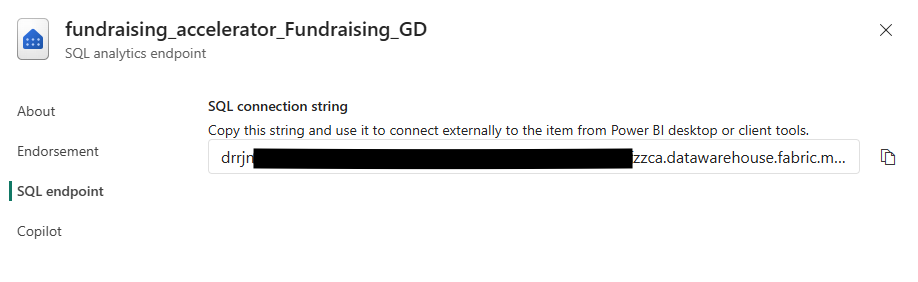
Once you’ve done that, work through the notebook until you get to the manual steps section.
Manual Steps After Creating the Model
Switching to Import Mode causes some issues on first refresh.
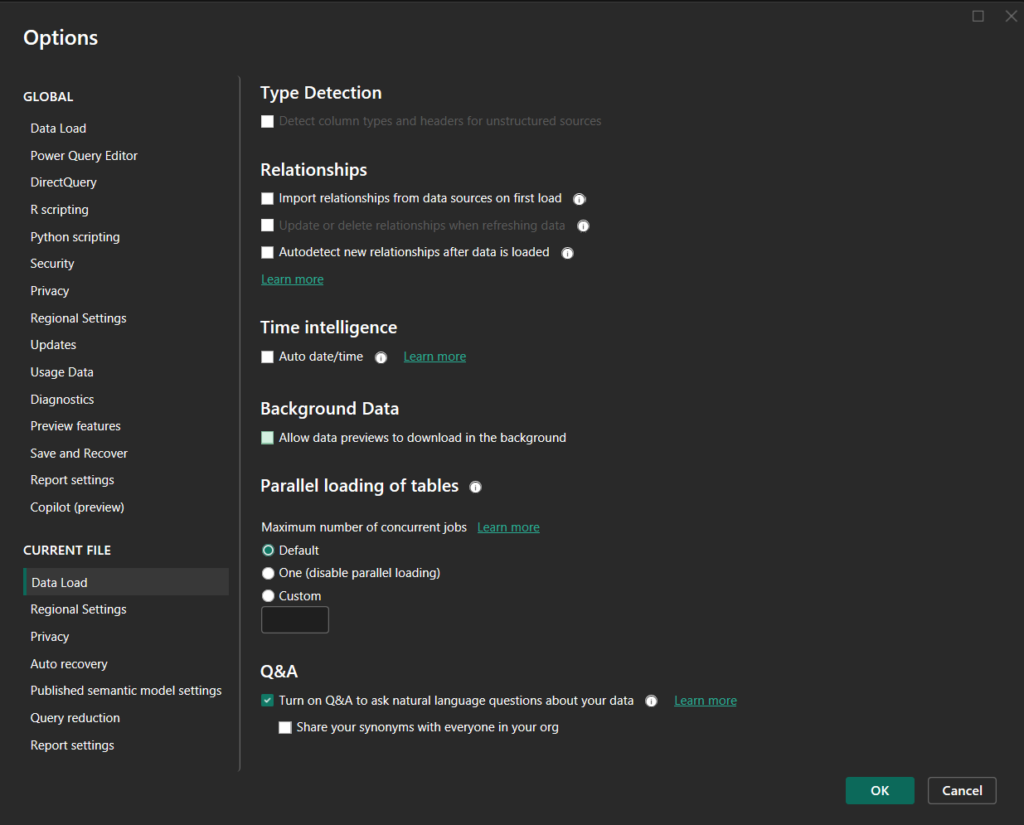
To get around these issues we need to disable the auto relationship settings. You could re-enable these after this process is complete if you’d like.
Unfortunately, Microsoft haven’t exposed these settings to the API or semantic_labs package so they require some manual steps. Luckily, you only need to do this once for each model when converting. After conversion the model works as a normal import mode table.
- In the workspace, find the new Import Mode model created by the notebook, download the PBIX, and open it in Power BI Desktop. You’ll see some warnings when you open the file – this is normal, ignore them and don’t refresh the model yet.
- Go to File > Options & Settings > Options > Current File > Data Load and turn off all Relationship settings and Auto date/time.
- Refresh the model in Power BI Desktop. Existing relationships will likely disappear, which is expected.
- Publish back to Power BI Service.
Then in Power BI Service:
- Open the semantic model’s Settings > Gateway and cloud connections and create a connection for the SQL endpoint.
- Refresh the semantic model.
- Open the model in the editor, switch to Edit mode, and make sure it can refresh there too.
No auto-detected relationships should appear, and the refresh should succeed. That confirms Import Mode is working correctly.
Now you should run the remaining cells in the notebook. These will recreate the relationships and rebind the reports.
At that point you should have all your reports pointing towards your new Import Mode model, with the exact same schema, measures, relationships and columns as the Direct Lake model.
Deployment and Development Process
Now that you have a Import Mode model, you’ll want to set up scheduled refreshes to ensure it stays in sync with your underlying data.
You’ll also notice that without a Fabric capacity, you lose Git integration in a workspace. Lucikly you can work around this by temporarily assigning a Fabric capacity when you need it.
My workflow now looks like this:
- When I want to branch the Power BI workspace, I temporarily attach it to a Fabric capacity.
- I can then use the Git UI to branch to a new development workspace, and remove the Fabric capacity from the main workspace.
- I make changes in the branched workspace, committing as normal using Fabric features. Usage in this workspace will count against your Fabric capacity. Once all changes are made, committed, and tested, I open a Pull Request in GitHub or Azure DevOps to align the main workspace with the branched one.
- When I’m ready to deploy, I attach the main workspace to a Fabric capacity, use the Git tools to pull the latest from the repo, then remove the capacity again.
Summary
Direct Lake is a great feature, but it’s not always the right tool for every organisation. I’d consider moving away from Direct Lake if:
- If you have a capacity below F64,
- You’re already paying for Power BI licenses, and
- You aren’t dealing with massive amounts of data.
In that situation, running your semantic models in Import Mode on a non-Fabric capacity is likely a more cost-efficient approach. In my case, report performance actually improved as well.
Microsoft doesn’t make it easy to convert a model, so I built a notebook that handles the heavy lifting: extracting the BIM, swapping the partitions to Import Mode M queries, creating the new model, recreating relationships, and rebinding reports.